Skip Navigation

Iframe Component

Iframe Component

When working within the Content Parsys all web components must first be placed inside of a Section Component

The IFrame component is used to embed special content into your web page. It allows you to insert external elements that require custom code or scripts. 

Usage

  • Embed a web page, form, or content hosted elsewhere 
  • Add an external URL that can’t be added through other tools 
  • When the Code Fragment is not a suitable alternative for your use case

How to Add the Component

Click within a section component to insert new components.
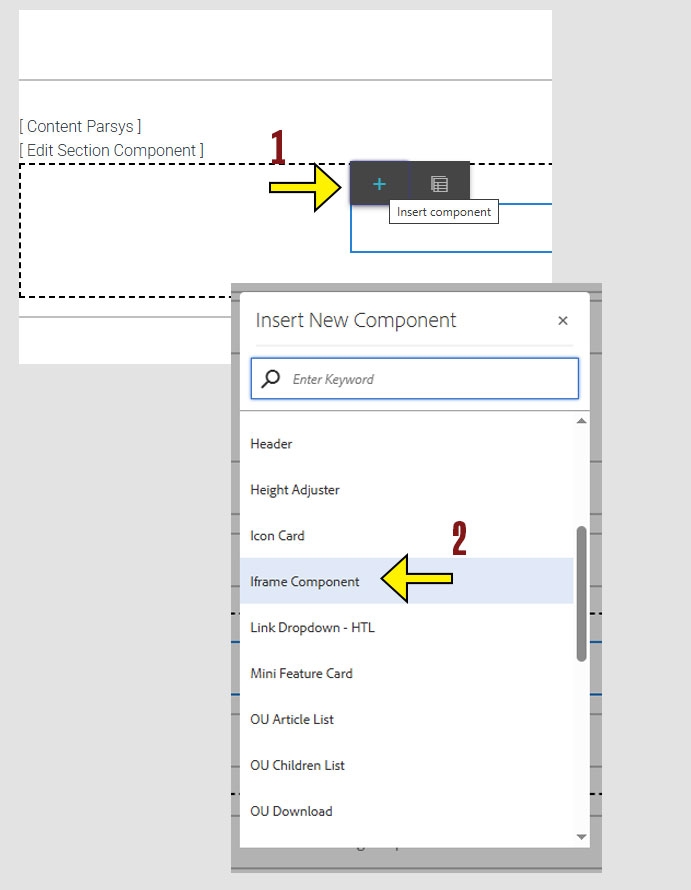
  1. Click the + icon 

  2. Choose Iframe Component
arrow pointing to the + icon on the component menu and another arrow pointing to the Iframe Component option on the insert new component menu

How to Configure the Component

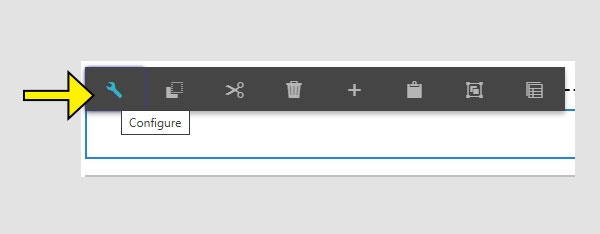
  1. To start using the component, click anywhere on the component and a menu will appear.

  2. Click the wrench icon to enter configure mode.
An arrow pointing to the wrench icon on the configure toolbar.

IFrame Component Configuration Fields

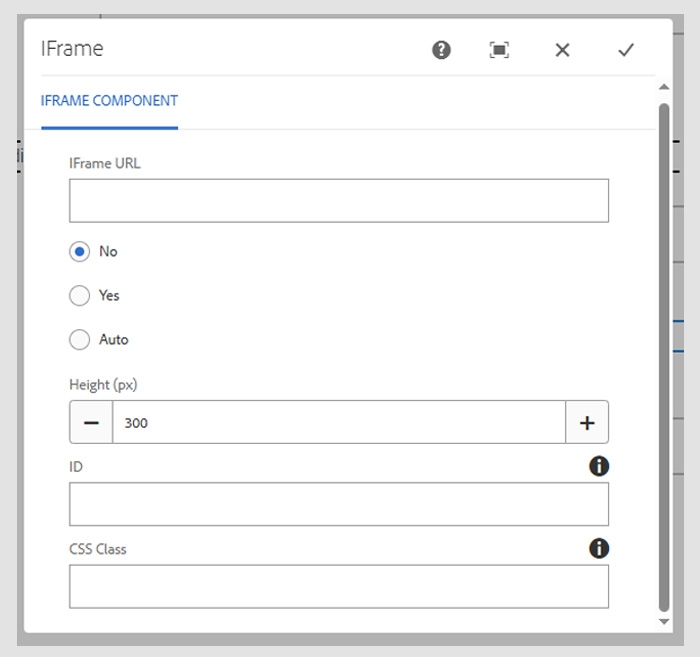
  • IFrame URL
    Enter the full URL of the page you want to embed on your site.
  • Scrollbar Options
    Choose whether the embedded content should show a scrollbar.
    Options:

    • Yes – Always show a scrollbar

    • No – Never show a scrollbar

    • Auto – Show only when needed (recommended)
  • Height
    Sets the height of the embedded content area.
    Default is 300 pixels, but you can adjust up or down depending on the content.


An arrow pointing to the wrench icon on the configure toolbar.

Working within the Component

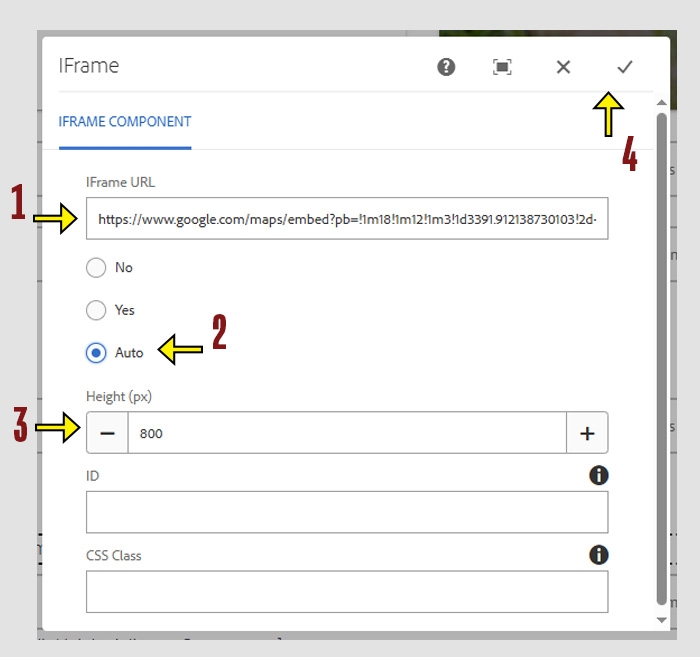
  1. Click into the IFrame URL field and type or paste the full URL of the content you want to embed.

  2. Select a scrollbar option based on how you want the embedded content to behave.

  3. Adjust the height of the display area if needed. 

  4. Click the check mark to save your changes and close the window. To cancel without saving, click the X.
An arrow pointing to the wrench icon on the configure toolbar.