Skip Navigation

Card

Card Component

When working within the Content Parsys all web components must first be placed inside of a Section Component

The card component is used to group related content in a structured, styled container. It typically includes a title, text, and optional image or link, all within a clean, bordered box.

Usage

  • Highlight related text and visuals together
  • Create a grid of content blocks, such as profiles, features, or resources
  • Display repeatable content in a uniform layout
  • Make your content easier to scan and read

How to Add the Component

Click within a section component to insert new components.
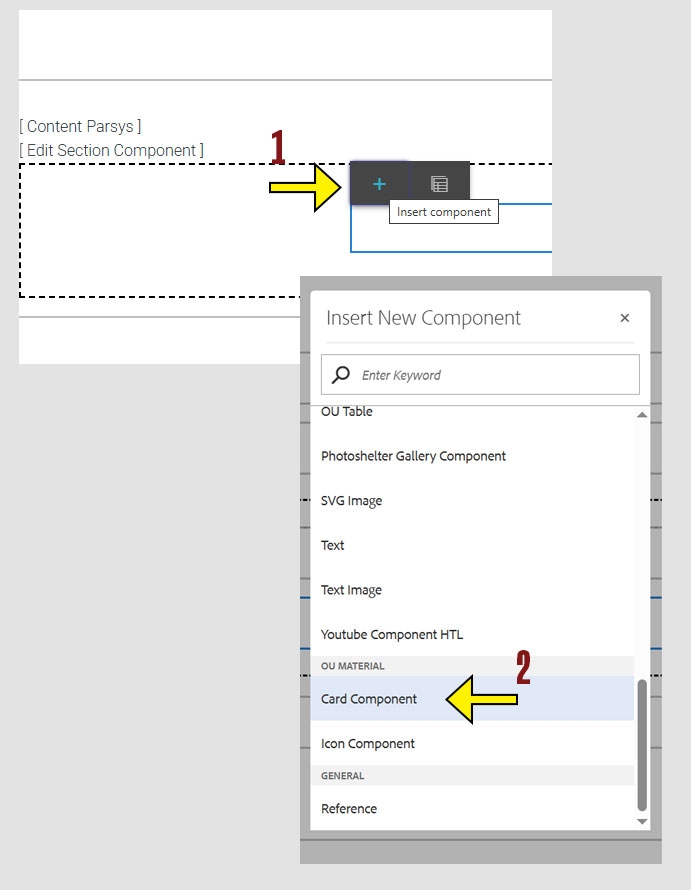
  1. Click the + icon

  2. Choose Card Component
arrow pointing to the + icon on the component menu and another arrow pointing to the Card Component option on the insert new component menu

How to Configure the Component

  1. To start using the component, click anywhere on the component and a menu will appear.

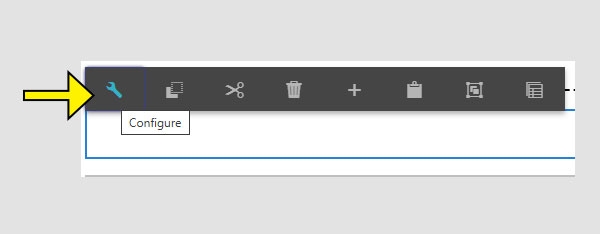
  2. Click the wrench icon to enter configure mode.
An arrow pointing to the wrench icon on the configure toolbar.

Working within the Component

Cards are versatile components that organize content in a clean, card-style layout. They help visually separate information and make it easier for users to scan. Each style offers different configuration options.

There are several types of card styles available, including:

  • Card with Header
  • Card with Image Header
  • Simple Card Image Top
  • Simple Card Image Bottom
  • Card with Image Background
  • Profile Card
  1.  Click the dropdown menu under the Card Type heading to choose which card style you want to use

Once you’ve selected a card style, you can begin entering the content and settings specific to that style. Each style may have different fields, so the options you see will depend on your selection.

The properties of each style are demonstrated below.
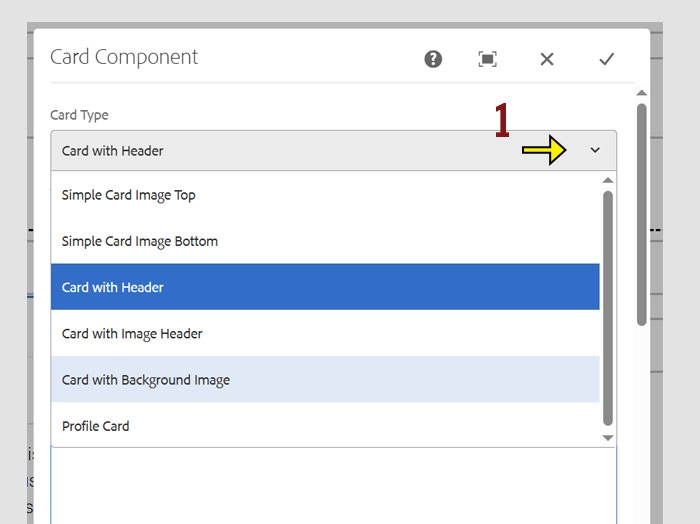
Card Component settings with an arrow highlighting the Card Type dropdown of the available coptions to choose from.

Card With Header

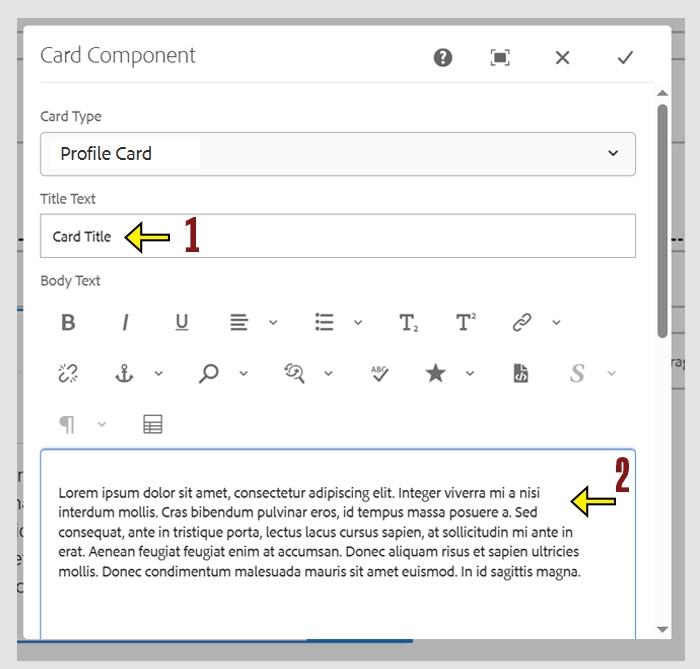
For this style, only two fields need your input:

  1. Title Text
    Enter the heading that you want to appear at the top of the card.

  2. Body Text
    Enter the main content to be displayed within the card.

  3. Click the check mark to save your changes and close the window. To cancel without saving, click the X.

These are the only required fields to complete this card style.
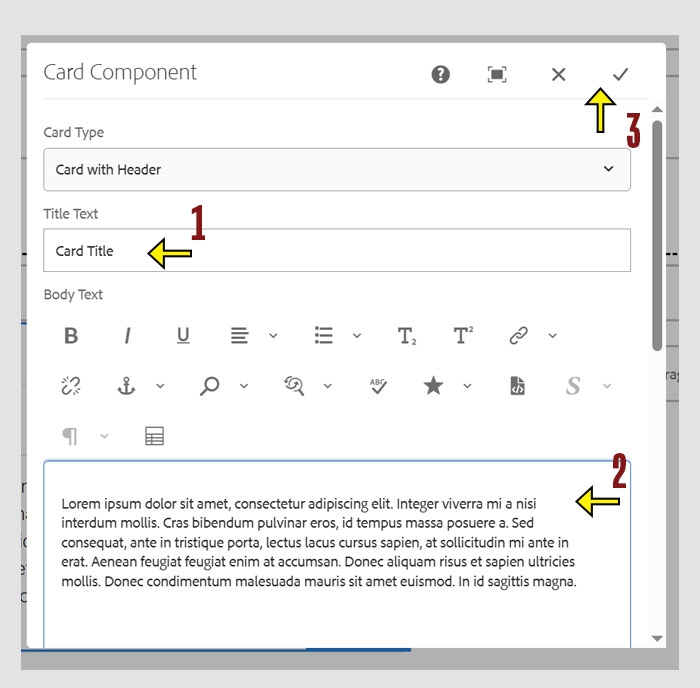
Card Component settings with an arrow highlighting "Tilte Text" field and the "Body Text" Field and the check mark to save changes.

Card with Image Header

For this card style, complete the following fields:

  1. Title Text
    Enter the heading that you want to appear at the top of the card.

  2. Body Text
    Enter the main content to be displayed within the card.

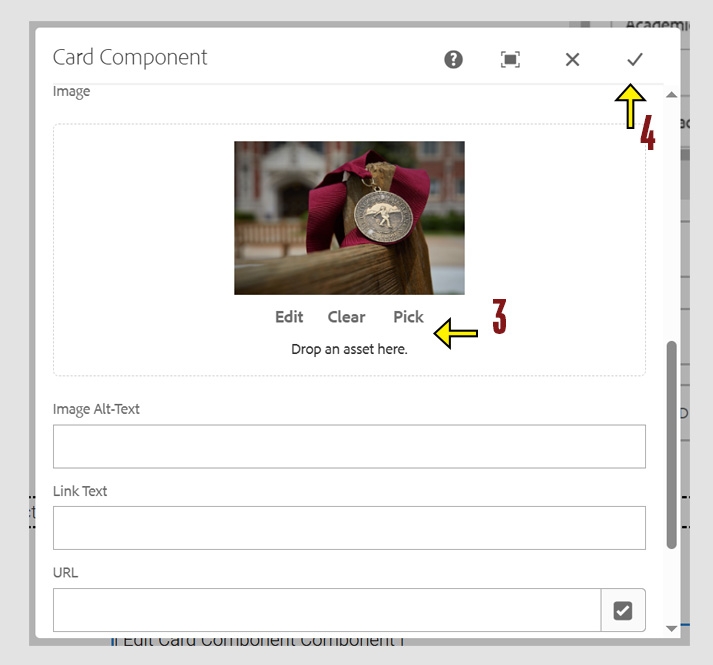
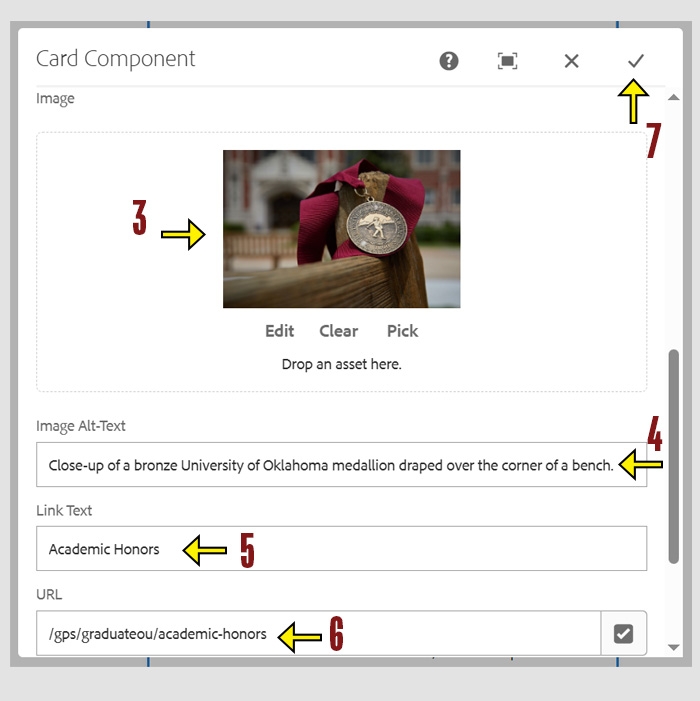
  3. Image
    Drag and drop your image from the assets in your side panel, or click Pick to navigate to your image folder in the DAM. (See the note and tip below for guidance on choosing the right image.)

  4. Alt Text 
    Enter a brief description of the image for screen readers and accessibility.

  5. Link Text (Optional)
    Enter the text that you want to appear as the clickable link.

  6. URL (Optional)
    Enter the destination web address for the link.

  7. Click the check mark to save your changes and close the window. To cancel without saving, click the X.

Note: Do not upload images into the component directly from your computer. You must first upload images to the Digital Asset Manager (DAM) and then select them from there.

TipRecommended sizes for images used in this card style are 900 × 600px or 1200 × 900px.
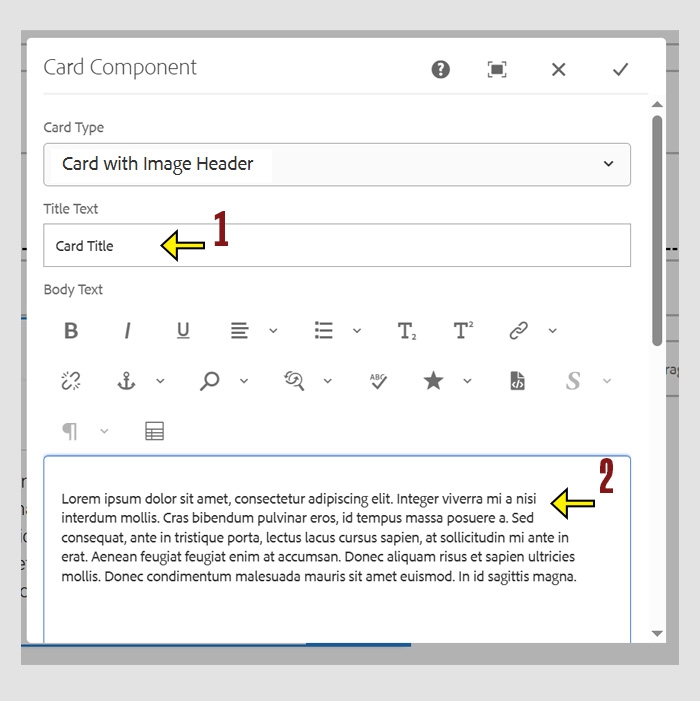


Card Component settings with an arrow highlighting "Tilte Text" field and the "Body Text" Fields
Card Component settings with an arrow highlighting drop and drop area for the "Image" field and the "Image Alt Text" , "Link Text" and "URL" fields along with the check mark for saving changes.

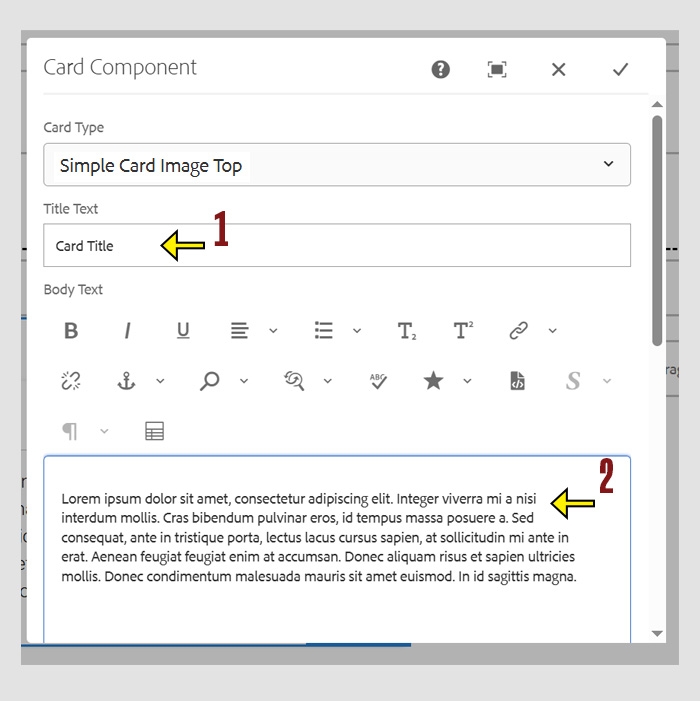
Simple Card Image Top

For this card style, complete the following fields:

  1. Title Text
    Enter the heading that you want to appear at the top of the card.

  2. Body Text
    Enter the main content to be displayed within the card.

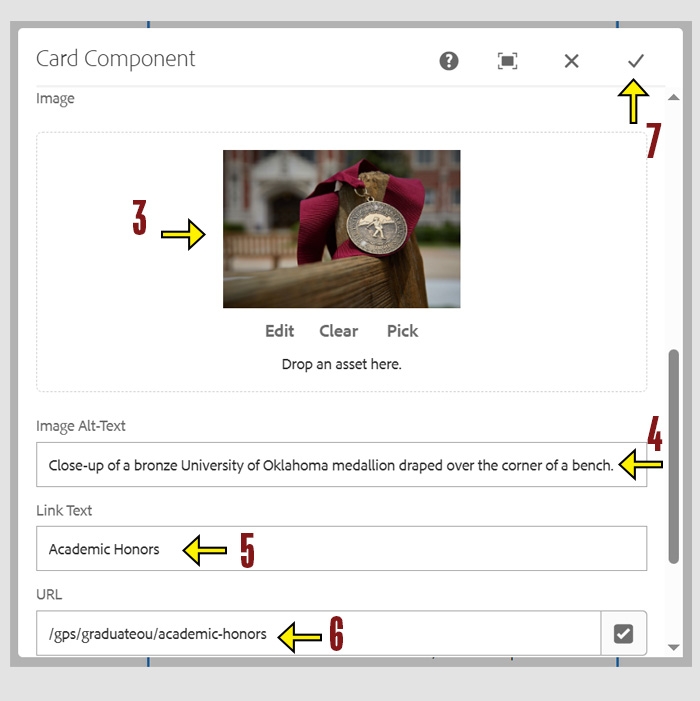
  3. Image
    Drag and drop your image from the assets in your side panel, or click Pick to navigate to your image folder in the DAM. (See the note and tip below for guidance on choosing the right image.)

  4. Alt Text 
    Enter a brief description of the image for screen readers and accessibility.

  5. Link Text (Optional)
    Enter the text that you want to appear as the clickable link.

  6. URL (Optional)
    Enter the destination web address for the link.

  7. Click the check mark to save your changes and close the window. To cancel without saving, click the X.

Note: Do not upload images into the component directly from your computer. You must first upload images to the Digital Asset Manager (DAM) and then select them from there.

TipRecommended sizes for images used in this card style are 900 × 600px or 1200 × 900px.
Card Component settings with an arrow highlighting "Tilte Text" field and the "Body Text" Fields
Card Component settings with an arrow highlighting drop and drop area for the "Image" field and the "Image Alt Text" , "Link Text" and "URL" fields along with the check mark for saving changes.

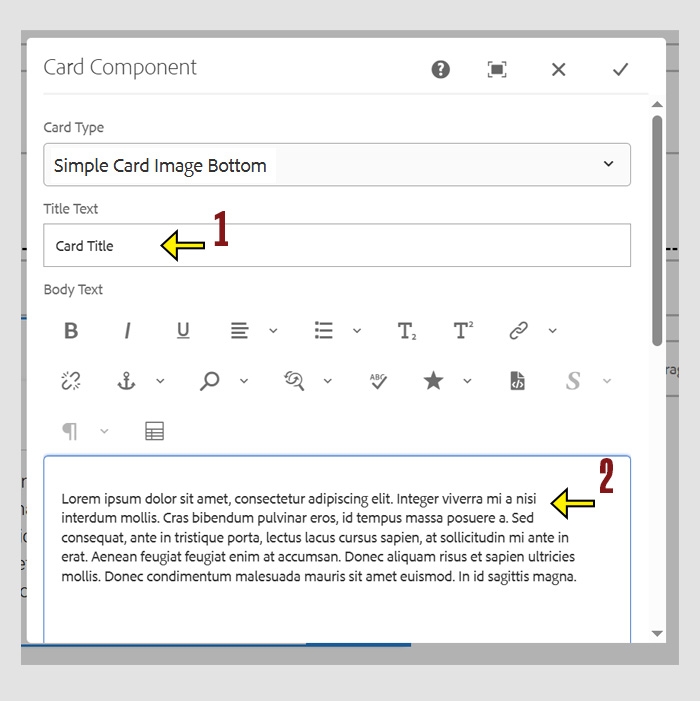
Simple Card Image Bottom

For this card style, complete the following fields:

  1. Title Text
    Enter the heading that you want to appear at the top of the card.

  2. Body Text
    Enter the main content to be displayed within the card.

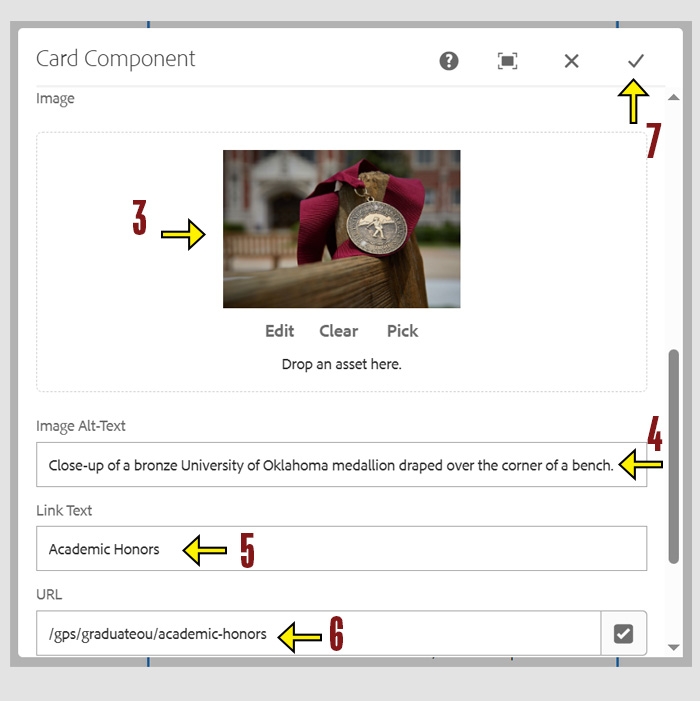
  3. Image
    Drag and drop your image from the assets in your side panel, or click Pick to navigate to your image folder in the DAM. (See the note and tip below for guidance on choosing the right image.)

  4. Alt Text 
    Enter a brief description of the image for screen readers and accessibility.

  5. Link Text (Optional)
    Enter the text that you want to appear as the clickable link.

  6. URL (Optional)
    Enter the destination web address for the link.

  7. Click the check mark to save your changes and close the window. To cancel without saving, click the X.

Note: Do not upload images into the component directly from your computer. You must first upload images to the Digital Asset Manager (DAM) and then select them from there.

TipRecommended sizes for images used in this card style are 900 × 600px or 1200 × 900px.
Card Component settings with an arrow highlighting "Tilte Text" field and the "Body Text" Fields
Card Component settings with an arrow highlighting drop and drop area for the "Image" field and the "Image Alt Text" , "Link Text" and "URL" fields along with the check mark for saving changes.

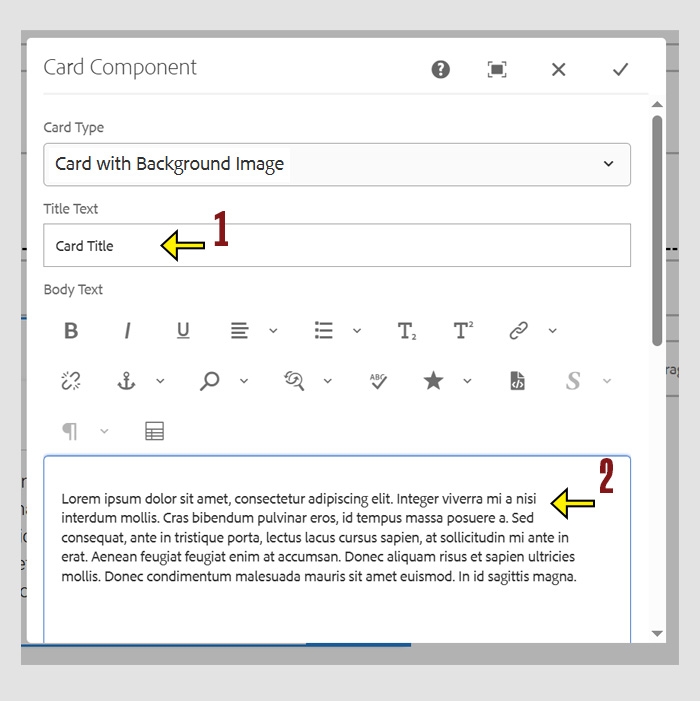
Card with Image Background

For this card style, complete the following fields:

  1. Title Text
    Enter the heading that you want to appear at the top of the card.

  2. Body Text
    Enter the main content to be displayed within the card.

  3. Image
    Drag and drop your image from the assets in your side panel, or click Pick to navigate to your image folder in the DAM. (See the note and tip below for guidance on choosing the right image.)

  4. Click the check mark to save your changes and close the window. To cancel without saving, click the X.

Note: Do not upload images into the component directly from your computer. You must first upload images to the Digital Asset Manager (DAM) and then select them from there.

Tips

  • Recommended sizes for images used in this card style are 900 × 600px or 1200 × 900px.
  • Text will appear on top of your image, so choose an image with a simple background that won’t distract from the message.
Card Component settings with an arrow highlighting "Tilte Text" field and the "Body Text" Fields
Card Component settings with an arrow highlighting drop and drop area for the "Image" field and the check mark for saving changes.

Profile Card

For this card style, complete the following fields:

  1. Title Text
    Enter the heading that you want to appear at the top of the card.

  2. Body Text
    Enter the main content to be displayed within the card.

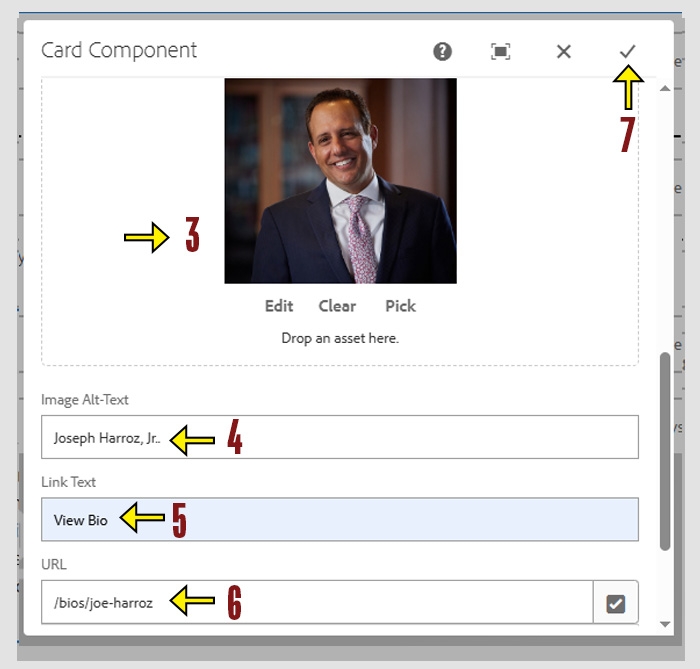
  3. Image
    Drag and drop your image from the assets in your side panel, or click Pick to navigate to your image folder in the DAM. (See the note and tip below for guidance on choosing the right image.)

  4. Alt Text 
    Enter a brief description of the image for screen readers and accessibility.

  5. Link Text (Optional)
    Enter the text that you want to appear as the clickable link.

  6. URL (Optional)
    Enter the destination web address for the link.

  7. Click the check mark to save your changes and close the window. To cancel without saving, click the X.

Note: Do not upload images into the component directly from your computer. You must first upload images to the Digital Asset Manager (DAM) and then select them from there.

Tips

  • Images size for the profile card must be a square. We recomment 600 x 600px.
Card Component settings with an arrow highlighting "Tilte Text" field and the "Body Text" Fields
Card Component settings with an arrow highlighting drop and drop area for the "Image" field and the "Image Alt Text" , "Link Text" and "URL" fields along with the check mark for saving changes.